# Sistemas utilizados em GRU

# Manual de acesso ao ambiente virtual - Moodle

# Introdução

Este manual é um passo a passo para você conseguir acessar o ambiente virtual de aprendizagem utilizado pelo Campus Guarulhos.

<div id="bkmrk-"><div><svg class="svg-icon" data-icon="link" role="presentation" viewbox="0 0 24 24" xmlns="http://www.w3.org/2000/svg"></svg></div></div>Para acessá-lo, será necessário ter acesso ao sistema SUAP. Caso ainda nunca tenha acesso o SUAP acesso o link ([https://suap.ifsp.edu.br/comum/solicitar\_trocar\_senha/](https://suap.ifsp.edu.br/comum/solicitar_trocar_senha/))

- Acesse o link [https://moodle.gru.ifsp.edu.br](https://moodle.gru.ifsp.edu.br) e clique no botão verde SUAP IFSP

[![image-1615919596466.png](https://manuais.ifsp.edu.br/uploads/images/gallery/2021-03/scaled-1680-/image-1615919596466.png)](https://manuais.ifsp.edu.br/uploads/images/gallery/2021-03/image-1615919596466.png)

- Preencha seu usuário (prontuário, exemplo: gu1234567) e senha.

[![image-1615919799809.png](https://manuais.ifsp.edu.br/uploads/images/gallery/2021-03/scaled-1680-/image-1615919799809.png)](https://manuais.ifsp.edu.br/uploads/images/gallery/2021-03/image-1615919799809.png)

- Após isto, será redirecionado automaticamente ao ambiente virtual que deverá indicar suas disciplinas do curso.
- Também é possível personalizar seu perfil clicando no seu nome e depois em Perfil

[![image-1615919884354.png](https://manuais.ifsp.edu.br/uploads/images/gallery/2021-03/scaled-1680-/image-1615919884354.png)](https://manuais.ifsp.edu.br/uploads/images/gallery/2021-03/image-1615919884354.png)

- - Na página do seu perfil clique em Modificar perfil caso queira incluir uma foto, assim como personalizar outras informações pessoais ao seu gosto.

[![image-1615920015692.png](https://manuais.ifsp.edu.br/uploads/images/gallery/2021-03/scaled-1680-/image-1615920015692.png)](https://manuais.ifsp.edu.br/uploads/images/gallery/2021-03/image-1615920015692.png)

Em caso de dúvidas o Campus Guarulhos disponibiliza um guia para ajudá-lo em [https://cti.pages.gru.ifsp.edu.br/ajudaAlunos/](https://cti.pages.gru.ifsp.edu.br/ajudaAlunos/)

# Manual Acesso à Plataforma Teams

<span style="font-size: 26pt; font-family: Arial; color: #000000; background-color: transparent; font-weight: 400; font-style: normal; font-variant: normal; text-decoration: none; vertical-align: baseline; white-space: pre-wrap;">Como ter acesso ao Microsoft Teams?</span>

# <span style="font-size: 20pt; font-family: Arial; color: #000000; background-color: transparent; font-weight: 400; font-style: normal; font-variant: normal; text-decoration: none; vertical-align: baseline; white-space: pre-wrap;">Introdução</span>

<span style="font-size: 11pt; font-family: Arial; color: #000000; background-color: transparent; font-weight: 400; font-style: normal; font-variant: normal; text-decoration: none; vertical-align: baseline; white-space: pre-wrap;">Este manual é um passo a passo em 3 passos para você conseguir acessar a plataforma Teams.</span>

<span style="font-size: 11pt; font-family: Arial; color: #000000; background-color: transparent; font-weight: 400; font-style: normal; font-variant: normal; text-decoration: none; vertical-align: baseline; white-space: pre-wrap;">Para acessá-la, será necessário:</span>

1. <span style="font-size: 11pt; font-family: Arial; color: #000000; background-color: transparent; font-weight: 400; font-style: normal; font-variant: normal; text-decoration: none; vertical-align: baseline; white-space: pre-wrap;">Ter uma conta de email institucional/acadêmico do IFSP (@aluno.ifsp.edu.br);</span>
2. <span style="font-size: 11pt; font-family: Arial; color: #000000; background-color: transparent; font-weight: 400; font-style: normal; font-variant: normal; text-decoration: none; vertical-align: baseline; white-space: pre-wrap;">Ter e acessar uma conta Office 365;</span>

<span style="font-size: 11pt; font-family: Arial; color: #000000; background-color: transparent; font-weight: 400; font-style: normal; font-variant: normal; text-decoration: none; vertical-align: baseline; white-space: pre-wrap;">Os procedimentos dos itens serão incluídos neste manual.</span>

# <span style="font-size: 20pt; font-family: Arial; color: #000000; background-color: transparent; font-weight: 400; font-style: normal; font-variant: normal; text-decoration: none; vertical-align: baseline; white-space: pre-wrap;">Passo 1: [Como criar uma conta de e-mail de aluno?](https://manuais.ifsp.edu.br/books/ensino/page/e-mail-do-aluno-%28alunoifspedubr%29)</span>

# <span style="font-size: 20pt; font-family: Arial; color: #000000; background-color: transparent; font-weight: 400; font-style: normal; font-variant: normal; text-decoration: none; vertical-align: baseline; white-space: pre-wrap;">Passo 2: [Como criar conta e acessar o Pacote Office 365?](https://manuais.ifsp.edu.br/books/office-365/page/acesso-office-365---discentes)</span>

# <span style="font-size: 20pt; font-family: Arial; color: #000000; background-color: transparent; font-weight: 400; font-style: normal; font-variant: normal; text-decoration: none; vertical-align: baseline; white-space: pre-wrap;">Passo 3: Como instalar e acessar o Teams?</span>

## <span style="font-size: 16pt; font-family: Arial; color: #000000; background-color: transparent; font-weight: 400; font-style: normal; font-variant: normal; text-decoration: none; vertical-align: baseline; white-space: pre-wrap;">Via Navegador</span>

<span style="font-size: 11pt; font-family: Arial; color: #000000; background-color: transparent; font-weight: 400; font-style: normal; font-variant: normal; white-space: pre-wrap;">- Para acessar via navegador, não é necessário instalar o Teams, basta entrar </span>[<span style="font-size: 11pt; font-family: Arial; color: #1155cc; background-color: transparent; font-weight: 400; font-style: normal; font-variant: normal; text-decoration-line: underline; text-decoration-skip-ink: none; white-space: pre-wrap;">NESTE LINK</span>](https://www.microsoft.com/pt-br/microsoft-teams/download-app)<span style="font-size: 11pt; font-family: Arial; color: #000000; background-color: transparent; font-weight: 400; font-style: normal; font-variant: normal; white-space: pre-wrap;"> e clicar em </span><span style="font-size: 11pt; font-family: Arial; color: #000000; background-color: transparent; font-weight: 400; font-style: normal; font-variant: normal; white-space: pre-wrap;"><span style="border-width: initial; border-style: none; display: inline-block; overflow: hidden; width: 58px; height: 58px;">![](https://lh5.googleusercontent.com/Dk_zQSf_E0zIopGQrQbqMcUuZ7ioYp2oWDkSv3PNfIhcnzR5jL2Xy2nuWZqRKM5Gh46x0lTbfBwt1Z_q3MeAj4dUa7rRk_bpHY7w34-ogykO6Zuzt0mECy2C6jAA3adS2gVqWUjP)</span></span><span style="font-size: 11pt; font-family: Arial; color: #000000; background-color: transparent; font-weight: 400; font-style: normal; font-variant: normal; white-space: pre-wrap;"> ou </span><span style="font-size: 11pt; font-family: Arial; color: #000000; background-color: transparent; font-weight: 400; font-style: normal; font-variant: normal; white-space: pre-wrap;"><span style="border-width: initial; border-style: none; display: inline-block; overflow: hidden; width: 89px; height: 49px;">![](https://lh3.googleusercontent.com/2WUaiHWFpOW7qzh5hasHxwWXISjQ0l0xYAXLnp4KAXQQREMa_hvWnJKfbJTuVu9r7R5NdrDaVHs-mCEMVeeNHt0kI9PSmjs5PhTY8iu5Z2QeTQaksNBvhRaQ3Pw0Vmf6VvFz1UKc)</span></span><span style="font-size: 11pt; font-family: Arial; color: #000000; background-color: transparent; font-weight: 400; font-style: normal; font-variant: normal; white-space: pre-wrap;">;</span>

![](https://lh6.googleusercontent.com/x5hwjeTuHVaR9O9LeyXuS4YGgzxgJroOqzxTOnUskUN5tHbsxoMXY7k1XrErYm7cTPldCCd_kwM9CbKiPLhLmSUre-VKiR_x78UOCATXltfYhp_TYRbpzE01sLfxLwwAWIfDgncB)

##  

<span id="bkmrk-%F0%9F%91%89-depois-coloque-seu-0" style="font-weight: normal;"><span style="font-size: 11pt; font-family: Arial; color: #000000; background-color: transparent; font-weight: 400; font-style: normal; font-variant: normal; white-space: pre-wrap;">- Depois coloque seu email institucional e clique em </span><span style="font-size: 11pt; font-family: Arial; color: #000000; background-color: transparent; font-weight: 400; font-style: normal; font-variant: normal; white-space: pre-wrap;"><span style="border-width: initial; border-style: none; display: inline-block; overflow: hidden; width: 146px; height: 49px;">![](https://lh4.googleusercontent.com/g0zwKlSVte1bObcuyz0TOq2P9dghu9cmImRECe3psHXMIwNth5Dokq652D64M2tUm9xRo6wwA6KUabUU6MooXXSnce31eHctOZ4o20Mu-z6Dngk1JMltqRXMUx_EHUV0W0BiSOr8)</span></span><span style="font-size: 11pt; font-family: Arial; color: #000000; background-color: transparent; font-weight: 400; font-style: normal; font-variant: normal; white-space: pre-wrap;">;</span></span>

<span style="font-size: 11pt; font-family: Arial; color: #000000; background-color: transparent; font-weight: 400; font-style: normal; font-variant: normal; text-decoration: none; vertical-align: baseline; white-space: pre-wrap;"><span style="border: none; display: inline-block; overflow: hidden; width: 560px; height: 431px;">![](https://lh6.googleusercontent.com/LBPEBKewQVfodELoAHxky4CEbbowVvW3qd60qakvs9UTiWzqd75X994nLcWQnH6ReUCcEfw3GwslHUZswTbGC5ceEK-nswkFIaXdXo1qXMUStsC9v6PFWBAuli0hUaHakggCPywV)</span></span>

##  

<span style="font-size: 11pt; font-family: Arial; color: #000000; background-color: transparent; font-weight: 400; font-style: normal; font-variant: normal; white-space: pre-wrap;">- Insira sua senha e clique em </span><span style="font-size: 11pt; font-family: Arial; color: #000000; background-color: transparent; font-weight: 400; font-style: normal; font-variant: normal; white-space: pre-wrap;"><span style="border-width: initial; border-style: none; display: inline-block; overflow: hidden; width: 145px; height: 48px;">![](https://lh3.googleusercontent.com/jFmhTCqj3whyO8oHznX6hGi83Gqdp4h80MYdxpMFXhUkwtaXHX-YM2I0Sb_zsI4vvTrMK7vWq5X516iOnuSZqeiUi-CXWZHEhAZ6Ih4gGJmL_6xvnjrjIQzi_RJNhxQuTeo39vS5)</span></span><span style="font-size: 11pt; font-family: Arial; color: #000000; background-color: transparent; font-weight: 400; font-style: normal; font-variant: normal; white-space: pre-wrap;">;</span>

<span id="bkmrk-%C2%A0-27" style="font-weight: normal;"> </span>

<span style="font-weight: normal;"><span style="font-style: normal; font-variant: normal; font-weight: 400; background-color: transparent; font-size: 11pt; font-family: Arial; color: #000000; white-space: pre-wrap;">- Após isso, confirme e depois clique em </span><span style="font-style: normal; font-variant: normal; font-weight: 400; background-color: transparent; font-size: 11pt; font-family: Arial; color: #000000; white-space: pre-wrap;"><span style="border-width: initial; border-style: none; display: inline-block; overflow: hidden; width: 338px; height: 51px;">![](https://lh5.googleusercontent.com/X3KA1pBUVK5FTCTF_nxbXkpwzTNyJkGIMQD1giy5sHaWKldO9DuwLzicEAuR1lvLMfrZMZa2aPpEItL4eswdd8E_gLgU3IDHVkFxS3-d-Wiqo2meSWV2uERm1d-qbDH4EYBhMd4g)</span></span><span style="font-style: normal; font-variant: normal; font-weight: 400; background-color: transparent; font-size: 11pt; font-family: Arial; color: #000000; white-space: pre-wrap;">;</span></span>

<span style="font-weight: normal;"> </span>

<span style="font-size: 11pt; font-family: Arial; color: #000000; background-color: transparent; font-weight: 400; font-style: normal; font-variant: normal; text-decoration: none; vertical-align: baseline; white-space: pre-wrap;"><span style="border: none; display: inline-block; overflow: hidden; width: 624px; height: 620px;">![](https://lh6.googleusercontent.com/2f7J0IpEjjL1O-jmfMT48wYoM19_85AdPwko7hsJIRS4byTNnDA_r9RMIriPe5P__lCSA7icjpmCJeflepHsu3taZ9GjYglf1eaa3ZHTXEmD__97VHbqxEc52CfJd7pzdiuZqF4q)</span></span>

##  

<span style="font-size: 11pt; font-family: Arial; color: #000000; background-color: #00ff00; font-weight: bold; font-style: normal; font-variant: normal; text-decoration: none; vertical-align: baseline; white-space: pre-wrap;">Pronto! </span><span style="font-size: 11pt; font-family: Arial; color: #000000; background-color: #00ff00; font-weight: 400; font-style: normal; font-variant: normal; text-decoration: none; vertical-align: baseline; white-space: pre-wrap;">Agora você está dentro da plataforma Teams no navegador!</span>

## <span style="font-size: 16pt; font-family: Arial; color: #000000; background-color: transparent; font-weight: 400; font-style: normal; font-variant: normal; text-decoration: none; vertical-align: baseline; white-space: pre-wrap;">No Windows</span>

<span id="bkmrk-%F0%9F%91%89-acesse-este-link-e-0" style="font-weight: normal;"><span style="font-size: 11pt; font-family: Arial; color: #000000; background-color: transparent; font-weight: 400; font-style: normal; font-variant: normal; white-space: pre-wrap;">- Acesse </span>[<span style="font-size: 11pt; font-family: Arial; color: #1155cc; background-color: transparent; font-weight: 400; font-style: normal; font-variant: normal; text-decoration-line: underline; text-decoration-skip-ink: none; white-space: pre-wrap;">ESTE LINK</span>](https://www.microsoft.com/pt-br/microsoft-teams/download-app)<span style="font-size: 11pt; font-family: Arial; color: #000000; background-color: transparent; font-weight: 400; font-style: normal; font-variant: normal; white-space: pre-wrap;"> e clique em </span><span style="font-size: 11pt; font-family: Arial; color: #000000; background-color: transparent; font-weight: 400; font-style: normal; font-variant: normal; white-space: pre-wrap;"><span style="border-width: initial; border-style: none; display: inline-block; overflow: hidden; width: 295px; height: 62px;">![](https://lh6.googleusercontent.com/dBpkisL_mGMzWvH9x6FmyQ0vrzpToVCuFxstHPuKlAgnHeR5ijP4iaWuiggzbXJ9Lwe7NJ5fgMKXp-KGoK-sbbr1pbDEzKpyTT3bn2crzeXWz26SAcZS2yLMYlBboLXYGOmIKcV2)</span></span><span style="font-size: 11pt; font-family: Arial; color: #000000; background-color: transparent; font-weight: 400; font-style: normal; font-variant: normal; white-space: pre-wrap;">;</span></span>

## <span style="font-weight: normal;"> </span>

<span style="font-size: 11pt; font-family: Arial; color: #000000; background-color: transparent; font-weight: 400; font-style: normal; font-variant: normal; text-decoration: none; vertical-align: baseline; white-space: pre-wrap;"><span style="font-size: 11pt; font-family: Arial; color: #000000; background-color: transparent; font-weight: 400; font-style: normal; font-variant: normal; white-space: pre-wrap;">- </span>Logo em seguida clique em </span><span style="font-size: 11pt; font-family: Arial; color: #000000; background-color: transparent; font-weight: 400; font-style: normal; font-variant: normal; text-decoration: none; vertical-align: baseline; white-space: pre-wrap;"><span style="border: none; display: inline-block; overflow: hidden; width: 277px; height: 256px;">![](https://lh5.googleusercontent.com/NbA-XHWYxMb62nozgEsAaPFml5Yp3Jn-a-vAmRENZhcjnYo0-O8f2GK49O1cyhyzVewu_nZRFlT4ZupSEE4M01Nt2cicZQFQ_5Zft0GvvlMVBqfofTb9UJDRKopAddJZ5qQSKJnF)</span></span><span style="font-size: 11pt; font-family: Arial; color: #000000; background-color: transparent; font-weight: 400; font-style: normal; font-variant: normal; text-decoration: none; vertical-align: baseline; white-space: pre-wrap;">;</span>

## <span style="font-weight: normal;"> </span>

<span style="font-weight: 400;"><span style="font-size: 11pt; font-family: Arial; color: #000000; background-color: transparent; font-weight: 400; font-style: normal; font-variant: normal; white-space: pre-wrap;">- </span>Salve o arquivo na pasta de sua preferência e abra o instalador;</span>

<span style="font-weight: 400;"><span style="font-size: 11pt; font-family: Arial; color: #000000; background-color: transparent; font-weight: 400; font-style: normal; font-variant: normal; white-space: pre-wrap;">- </span>Siga as instruções de instalação e logo depois abra o aplicativo;</span>

## <span style="font-weight: normal;"> </span>

<span id="bkmrk-%F0%9F%91%89-coloque-seu-email--0" style="font-weight: normal;"><span style="font-size: 11pt; font-family: Arial; color: #000000; background-color: transparent; font-weight: 400; font-style: normal; font-variant: normal; white-space: pre-wrap;">- Coloque seu email @aluno.ifsp.edu.br, clique em </span><span style="font-size: 11pt; font-family: Arial; color: #000000; background-color: transparent; font-weight: 400; font-style: normal; font-variant: normal; white-space: pre-wrap;"><span style="border-width: initial; border-style: none; display: inline-block; overflow: hidden; width: 146px; height: 49px;">![](https://lh4.googleusercontent.com/g0zwKlSVte1bObcuyz0TOq2P9dghu9cmImRECe3psHXMIwNth5Dokq652D64M2tUm9xRo6wwA6KUabUU6MooXXSnce31eHctOZ4o20Mu-z6Dngk1JMltqRXMUx_EHUV0W0BiSOr8)</span></span><span style="font-size: 11pt; font-family: Arial; color: #000000; background-color: transparent; font-weight: 400; font-style: normal; font-variant: normal; white-space: pre-wrap;">, depois insira sua senha e clique em </span><span style="font-size: 11pt; font-family: Arial; color: #000000; background-color: transparent; font-weight: 400; font-style: normal; font-variant: normal; white-space: pre-wrap;"><span style="border-width: initial; border-style: none; display: inline-block; overflow: hidden; width: 146px; height: 49px;">![](https://lh5.googleusercontent.com/JsopIZ9w7JNc_ztedRJPUvqhvw187nuld_9pozCpUSF9-f9cjMzVTO3Udw3zCdx-Iw2AFDw--SS9LLWEseSCSraq9unwm6E58yZ2jX26WZFIpeOzBHJFW3J6Jpv4iw8pQiQAevs6)</span></span><span style="font-size: 11pt; font-family: Arial; color: #000000; background-color: transparent; font-weight: 400; font-style: normal; font-variant: normal; white-space: pre-wrap;">;</span></span>

<span style="font-size: 11pt; font-family: Arial; color: #000000; background-color: transparent; font-weight: 400; font-style: normal; font-variant: normal; white-space: pre-wrap;">;</span><span style="font-size: 11pt; font-family: Arial; color: #000000; background-color: transparent; font-weight: 400; font-style: normal; font-variant: normal; white-space: pre-wrap;"><span style="border-width: initial; border-style: none; display: inline-block; overflow: hidden; width: 624px; height: 607px;">![](https://lh6.googleusercontent.com/JqHvDjnH42mamQpYs1173mgBg-eeaVqZwIBLtGw4dFdUs3q4xgS7r4hPDLyHk98mQdBhscALJFwd1JGC0_Ywa588XzDCjb8RKnzLeW4NA1u_x3b5RjcSg_RDi5veE6qG3gl4ab1l)</span></span>

## <span style="font-weight: normal;"> </span>

<span style="font-size: 11pt; font-family: Arial; color: #000000; background-color: #00ff00; font-weight: bold; font-style: normal; font-variant: normal; white-space: pre-wrap;">Pronto! </span><span style="font-size: 11pt; font-family: Arial; color: #000000; background-color: #00ff00; font-weight: 400; font-style: normal; font-variant: normal; white-space: pre-wrap;">Agora você está dentro da plataforma Teams no Windows!</span>

<span style="font-weight: 400;"><span style="font-size: 11pt; font-family: Arial; color: #000000; background-color: transparent; font-weight: 400; font-style: normal; font-variant: normal; white-space: pre-wrap;">- </span>Acesse a Play Store;</span>

<span style="font-weight: normal;"><span style="font-weight: normal;"> </span></span>

<span style="font-size: 11pt; font-family: Arial; color: #000000; background-color: transparent; font-weight: 400; font-style: normal; font-variant: normal; white-space: pre-wrap;"><span style="border-width: initial; border-style: none; display: inline-block; overflow: hidden; width: 540px; height: 671px;">![](https://lh3.googleusercontent.com/6hlgxhY6hGDAn68pU3lMD9KT9gqQwLa1F5yLCJmBk_iEtHsEkDYyS4DcXzwQ2W0PDgdPi-e7tHTj3kO1KcbeKh2mjVjKUbrUvKvSNdqlB-HrdfFXoko8ZO-bjaohgZbbVIV6aP2C)</span></span>

<span style="font-weight: normal;"><span style="font-weight: normal;">  
  
  
</span></span>

<span style="font-weight: 400;"><span style="font-size: 11pt; font-family: Arial; color: #000000; background-color: transparent; font-weight: 400; font-style: normal; font-variant: normal; white-space: pre-wrap;">- </span>Digite “microsoft teams” no campo de busca e clique na primeira opção;</span>

<span style="font-weight: normal;"><span style="font-weight: normal;"> </span></span>

<span style="font-size: 11pt; font-family: Arial; color: #000000; background-color: transparent; font-weight: 400; font-style: normal; font-variant: normal; white-space: pre-wrap;"><span style="border-width: initial; border-style: none; display: inline-block; overflow: hidden; width: 540px; height: 620px;">![](https://lh4.googleusercontent.com/RlYXZGKgV4j0Ajc4jPvqzJnU8xuavWXxpS10_x6yCsFvRoEjn_qwI2NFVOXNfYyE7VAe4ubZXCqaVyMlgVKztpvCCU8RpOdkZDhK_6mz4OwZOKRdM96nTNX49Vf1nMFOlxcVRfa2)</span></span>

<span style="font-weight: normal;"><span style="font-weight: normal;"> </span></span>

<span style="font-weight: 400;"><span style="font-size: 11pt; font-family: Arial; color: #000000; background-color: transparent; font-weight: 400; font-style: normal; font-variant: normal; white-space: pre-wrap;">- </span>Toque em “Instalar”;</span>

<span style="font-size: 11pt; font-family: Arial; color: #000000; background-color: transparent; font-weight: 400; font-style: normal; font-variant: normal; white-space: pre-wrap;"><span style="border-width: initial; border-style: none; display: inline-block; overflow: hidden; width: 540px; height: 835px;">![](https://lh5.googleusercontent.com/JBEOax9IdRs_UdLohPObU-vZuzbFMp_VkCuvdZduYL5o-ldr7ebzJiP_aTUcoh7mc901mwkiBZ9uTViPbq1klAZjLrQci5Zh53er7D1EzgJHVXkIqmjcwErmIunpNMK8ptS0Blal)</span></span>

<span style="font-weight: 400;"><span style="font-size: 11pt; font-family: Arial; color: #000000; background-color: transparent; font-weight: 400; font-style: normal; font-variant: normal; white-space: pre-wrap;">- </span>Logo após a instalação, abra o aplicativo em “Abrir”;</span>

<span style="font-weight: normal;"><span style="font-weight: normal;"> </span></span>

<span style="font-size: 11pt; font-family: Arial; color: #000000; background-color: transparent; font-weight: 400; font-style: normal; font-variant: normal; white-space: pre-wrap;"><span style="border-width: initial; border-style: none; display: inline-block; overflow: hidden; width: 540px; height: 794px;">![](https://lh6.googleusercontent.com/3fpsr_f3FrsMFVQeu49POVSICD3FxwEZ40nMfnx3VOtdWqxW_1en5QOsv81AA4k8XuEJqZ4p6s2gIUddHBDjMcChNqZ9HbvybfEWXmcs-CjIZXWY7CuZgcmUrz6NLB-1h1F1gxoV)</span></span>

<span style="font-weight: normal;"><span style="font-weight: normal;"> </span></span>

<span style="font-weight: 400;"><span style="font-size: 11pt; font-family: Arial; color: #000000; background-color: transparent; font-weight: 400; font-style: normal; font-variant: normal; white-space: pre-wrap;">- </span>Digite seu email acadêmico @aluno.ifsp.edu.br no campo texto e clique em “Entrar”;</span>

<span style="font-weight: normal;"><span style="font-weight: normal;"> </span></span>

<span style="font-size: 11pt; font-family: Arial; color: #000000; background-color: transparent; font-weight: 400; font-style: normal; font-variant: normal; white-space: pre-wrap;"><span style="border-width: initial; border-style: none; display: inline-block; overflow: hidden; width: 540px; height: 776px;">![](https://lh6.googleusercontent.com/Qa8CNtEXqKzQOYBDWp4Lv-JokkI1AcES2sj_cu_J0pxhXi0QLioH-ECqGexNQYuVTNa_TPHzYPEDpqJWuELan3Bf8KY2e6cisIX7CtxFOed93ZDXA7EILXSJ4Yvsh0un0SXmI77K)</span></span>

<span style="font-weight: 400;"><span style="font-size: 11pt; font-family: Arial; color: #000000; background-color: transparent; font-weight: 400; font-style: normal; font-variant: normal; white-space: pre-wrap;">- </span>Por fim, insira a sua senha e clique em “Entrar”.</span>

<span style="font-weight: normal;"><span style="font-weight: normal;"> </span></span>

<span style="font-size: 11pt; font-family: Arial; color: #000000; background-color: transparent; font-weight: 400; font-style: normal; font-variant: normal; white-space: pre-wrap;"><span style="border-width: initial; border-style: none; display: inline-block; overflow: hidden; width: 540px; height: 413px;">![](https://lh5.googleusercontent.com/J9WGpFdJokvZb6c3CnZYbnLASojXUAeUSkCXNE6p5NNCd1yUIEipSvJ_nNmKrNdJVX4BWgS_zqdKzZ0h33r7F2aScfxu1ayoUbHHgIZfZf1wQi0EIh2r8LbCB5w2iIGj2zNgEjJV)</span></span>

## Pronto! <span style="font-style: normal; font-variant: normal; font-weight: 400; font-size: 11pt; font-family: Arial; color: #000000; background-color: #00ff00; white-space: pre-wrap;">Agora você está dentro da plataforma Teams no Android!</span>

## <span style="font-size: 16pt; font-family: Arial; color: #000000; background-color: transparent; font-weight: 400; font-style: normal; font-variant: normal; text-decoration: none; vertical-align: baseline; white-space: pre-wrap;">No IOS</span>

<span style="font-weight: 400;"><span style="font-size: 11pt; font-family: Arial; color: #000000; background-color: transparent; font-weight: 400; font-style: normal; font-variant: normal; white-space: pre-wrap;">- </span>Acesse a App Store;</span>

<span style="font-weight: 400;"><span style="font-size: 11pt; font-family: Arial; color: #000000; background-color: transparent; font-weight: 400; font-style: normal; font-variant: normal; white-space: pre-wrap;">- </span>No campo de busca, digite “microsoft teams” ou somente “teams” e clique na primeira opção;</span>

<span style="font-size: 11pt; font-family: Arial; color: #000000; background-color: transparent; font-weight: 400; font-style: normal; font-variant: normal; white-space: pre-wrap;"><span style="border-width: initial; border-style: none; display: inline-block; overflow: hidden; width: 617px; height: 822px;">![](https://lh3.googleusercontent.com/KjuefROXjYEFbPfDwdzob3zCN94ldzZ1UUQaFN4X6KedgoAQ-YLPYn39rjA4gsJS-W7Y1H11PTNK-sVtOH1lPiFldighCnAJAbDoqNlHJf2yJX482A5RoMr2XTdLJ4dzqgyI9rb7)</span></span>

## <span style="font-weight: normal;"> </span>

<span style="font-weight: 400;"><span style="font-size: 11pt; font-family: Arial; color: #000000; background-color: transparent; font-weight: 400; font-style: normal; font-variant: normal; white-space: pre-wrap;">- </span>Logo após a instalação, abra o aplicativo;</span>

<span style="font-weight: 400;"><span style="font-size: 11pt; font-family: Arial; color: #000000; background-color: transparent; font-weight: 400; font-style: normal; font-variant: normal; white-space: pre-wrap;">- </span>Digite seu email acadêmico @aluno.ifsp.edu.br no campo texto e clique em “Entrar”;</span>

## <span style="font-weight: normal;"> </span>

<span style="font-size: 11pt; font-family: Arial; color: #000000; background-color: transparent; font-weight: 400; font-style: normal; font-variant: normal; white-space: pre-wrap;"><span style="border-width: initial; border-style: none; display: inline-block; overflow: hidden; width: 540px; height: 708px;">![](https://lh6.googleusercontent.com/Qa8CNtEXqKzQOYBDWp4Lv-JokkI1AcES2sj_cu_J0pxhXi0QLioH-ECqGexNQYuVTNa_TPHzYPEDpqJWuELan3Bf8KY2e6cisIX7CtxFOed93ZDXA7EILXSJ4Yvsh0un0SXmI77K)</span></span>

## <span style="font-weight: normal;">  
  
</span>

<span style="font-weight: 400;"><span style="font-size: 11pt; font-family: Arial; color: #000000; background-color: transparent; font-weight: 400; font-style: normal; font-variant: normal; white-space: pre-wrap;">- </span>Por fim, insira a sua senha e clique em “Entrar”.</span>

## <span style="font-weight: normal;"> </span>

<span style="font-size: 11pt; font-family: Arial; color: #000000; background-color: transparent; font-weight: 400; font-style: normal; font-variant: normal; white-space: pre-wrap;"><span style="border-width: initial; border-style: none; display: inline-block; overflow: hidden; width: 540px; height: 413px;">![](https://lh5.googleusercontent.com/J9WGpFdJokvZb6c3CnZYbnLASojXUAeUSkCXNE6p5NNCd1yUIEipSvJ_nNmKrNdJVX4BWgS_zqdKzZ0h33r7F2aScfxu1ayoUbHHgIZfZf1wQi0EIh2r8LbCB5w2iIGj2zNgEjJV)</span></span>

## <span id="bkmrk-pronto%21-agora-voc%C3%AA-e-3" style="font-weight: normal;">  
<span style="font-size: 11pt; font-family: Arial; color: #000000; background-color: #00ff00; font-weight: bold; font-style: normal; font-variant: normal; white-space: pre-wrap;">Pronto! </span><span style="font-size: 11pt; font-family: Arial; color: #000000; background-color: #00ff00; font-weight: 400; font-style: normal; font-variant: normal; white-space: pre-wrap;">Agora você está dentro da plataforma Teams no IOS!</span></span>

# <span style="font-size: 20pt; font-family: Arial; color: #000000; background-color: transparent; font-weight: 400; font-style: normal; font-variant: normal; text-decoration: none; vertical-align: baseline; white-space: pre-wrap;">Bônus</span>

<span style="font-size: 11pt; font-family: Arial; color: #000000; background-color: transparent; font-weight: 400; font-style: normal; font-variant: normal; text-decoration: none; vertical-align: baseline; white-space: pre-wrap;">O Câmpus Bragança realizou um projeto com alguns professores que criaram alguns vídeos tutoriais de acesso às atividades online e de acesso às plataformas. Segue o link da playlist: </span>[<span style="font-size: 11pt; font-family: Arial; color: #1155cc; background-color: transparent; font-weight: 400; font-style: normal; font-variant: normal; text-decoration: underline; -webkit-text-decoration-skip: none; text-decoration-skip-ink: none; vertical-align: baseline; white-space: pre-wrap;">Youtube Playlist</span>](https://www.youtube.com/playlist?list=PLD-Mek1SkXMK1ijNG4TdLsM3xBCGdNkHr)<span style="font-size: 11pt; font-family: Arial; color: #000000; background-color: transparent; font-weight: 400; font-style: normal; font-variant: normal; text-decoration: none; vertical-align: baseline; white-space: pre-wrap;">.</span>

# Como compartilhar a Internet Móvel no Android

<span style="font-size: 15pt; font-family: Arial; color: #666666; background-color: transparent; font-weight: 400; font-style: normal; font-variant: normal; text-decoration: none; vertical-align: baseline; white-space: pre-wrap;">Função do celular que compartilha a internet da rede móvel com outros dispositivos via WiFi.</span>

<span style="font-size: 11pt; font-family: Arial; color: #000000; background-color: transparent; font-weight: bold; font-style: normal; font-variant: normal; text-decoration: none; vertical-align: baseline; white-space: pre-wrap;">ATENÇÃO: </span><span style="font-size: 11pt; font-family: Arial; color: #000000; background-color: transparent; font-weight: 400; font-style: normal; font-variant: normal; text-decoration: none; vertical-align: baseline; white-space: pre-wrap;">O passo a passo abaixo é para dispositivos android Versao 6.0, </span><span style="font-size: 11pt; font-family: Arial; color: #000000; background-color: transparent; font-weight: bold; font-style: normal; font-variant: normal; text-decoration: none; vertical-align: baseline; white-space: pre-wrap;">porém serve como referência para outros dispositivos android</span><span style="font-size: 11pt; font-family: Arial; color: #000000; background-color: transparent; font-weight: 400; font-style: normal; font-variant: normal; text-decoration: none; vertical-align: baseline; white-space: pre-wrap;">, atente-se aos termos como semelhantes: “</span><span style="font-size: 11pt; font-family: Arial; color: #000000; background-color: transparent; font-weight: bold; font-style: normal; font-variant: normal; text-decoration: none; vertical-align: baseline; white-space: pre-wrap;">Roteador Wi-Fi</span><span style="font-size: 11pt; font-family: Arial; color: #000000; background-color: transparent; font-weight: 400; font-style: normal; font-variant: normal; text-decoration: none; vertical-align: baseline; white-space: pre-wrap;">“, </span><span style="font-size: 11pt; font-family: Arial; color: #000000; background-color: transparent; font-weight: bold; font-style: normal; font-variant: normal; text-decoration: none; vertical-align: baseline; white-space: pre-wrap;">Hotspot portátil</span><span style="font-size: 11pt; font-family: Arial; color: #000000; background-color: transparent; font-weight: 400; font-style: normal; font-variant: normal; text-decoration: none; vertical-align: baseline; white-space: pre-wrap;">”, “</span><span style="font-size: 11pt; font-family: Arial; color: #000000; background-color: transparent; font-weight: bold; font-style: normal; font-variant: normal; text-decoration: none; vertical-align: baseline; white-space: pre-wrap;">ponto de acesso wifi</span><span style="font-size: 11pt; font-family: Arial; color: #000000; background-color: transparent; font-weight: 400; font-style: normal; font-variant: normal; text-decoration: none; vertical-align: baseline; white-space: pre-wrap;">”, “</span><span style="font-size: 11pt; font-family: Arial; color: #000000; background-color: transparent; font-weight: bold; font-style: normal; font-variant: normal; text-decoration: none; vertical-align: baseline; white-space: pre-wrap;">ponto de acesso</span><span style="font-size: 11pt; font-family: Arial; color: #000000; background-color: transparent; font-weight: 400; font-style: normal; font-variant: normal; text-decoration: none; vertical-align: baseline; white-space: pre-wrap;">”, “</span><span style="font-size: 11pt; font-family: Arial; color: #000000; background-color: transparent; font-weight: bold; font-style: normal; font-variant: normal; text-decoration: none; vertical-align: baseline; white-space: pre-wrap;">acesso portátil”, etc.</span>

<span style="font-size: 11pt; font-family: Arial; color: #000000; background-color: transparent; font-weight: bold; font-style: normal; font-variant: normal; text-decoration: none; vertical-align: baseline; white-space: pre-wrap;">Passo 1</span><span style="font-size: 11pt; font-family: Arial; color: #000000; background-color: transparent; font-weight: 400; font-style: normal; font-variant: normal; text-decoration: none; vertical-align: baseline; white-space: pre-wrap;">. Abra as “Configurações” do seu smartphone e selecione a opção “... Mais”.</span>

<span style="font-size: 11pt; font-family: Arial; color: #000000; background-color: transparent; font-weight: bold; font-style: normal; font-variant: normal; text-decoration: none; vertical-align: baseline; white-space: pre-wrap;">Passo 2</span><span style="font-size: 11pt; font-family: Arial; color: #000000; background-color: transparent; font-weight: 400; font-style: normal; font-variant: normal; text-decoration: none; vertical-align: baseline; white-space: pre-wrap;">. Em seguida, vá em “Roteador Wi-Fi”.</span>

<span style="font-size: 11pt; font-family: Arial; color: #000000; background-color: transparent; font-weight: 400; font-style: normal; font-variant: normal; text-decoration: none; vertical-align: baseline; white-space: pre-wrap;"><span style="border: none; display: inline-block; overflow: hidden; width: 624px; height: 555px;">![](https://lh4.googleusercontent.com/gFvrovbgT64x3eyGOkA56_Vgf9VRS3B0a18I5W60RkCd5Rfm-b-J90tSy4fUajAsd-5zlJy8vjgJTIB76MB23A19JoM8ZIxRD30vqxEecjFistE3y--BO9A5ar8fpjOgpGUqQ-LL)</span></span>

<span style="font-size: 11pt; font-family: Arial; color: #000000; background-color: transparent; font-weight: bold; font-style: normal; font-variant: normal; text-decoration: none; vertical-align: baseline; white-space: pre-wrap;">Passo 3</span><span style="font-size: 11pt; font-family: Arial; color: #000000; background-color: transparent; font-weight: 400; font-style: normal; font-variant: normal; text-decoration: none; vertical-align: baseline; white-space: pre-wrap;">. Agora, toque sobre a opção “Configurar roteador Wi-Fi” para ajustar o seu ponto de internet. Você pode então dar um nome ao Wi-Fi e colocar uma senha. Depois toque em “Salvar”.</span>

<span style="font-size: 11pt; font-family: Arial; color: #000000; background-color: transparent; font-weight: bold; font-style: normal; font-variant: normal; text-decoration: none; vertical-align: baseline; white-space: pre-wrap;">Passo 4</span><span style="font-size: 11pt; font-family: Arial; color: #000000; background-color: transparent; font-weight: 400; font-style: normal; font-variant: normal; text-decoration: none; vertical-align: baseline; white-space: pre-wrap;">. Volte à tela anterior e ative a chave “Roteador Wi-Fi portátil”. Pronto! Agora, de outro dispositivo, basta selecionar a rede criada e colocar a senha.</span>

<span style="font-size: 11pt; font-family: Arial; color: #000000; background-color: transparent; font-weight: 400; font-style: normal; font-variant: normal; text-decoration: none; vertical-align: baseline; white-space: pre-wrap;"><span style="border: none; display: inline-block; overflow: hidden; width: 624px; height: 369px;">![](https://lh3.googleusercontent.com/D3b5bYFpVhBAU0BQfo6a1oUIOFdGGlyb4_45xKyci3sK1qC0bKS9rv9kTyHjhG87qHYcVIdVQig3UlR2MmCylOKE8nLdJTdf01jHDO0ZMAZuBBLj1CrLIN19yzJJJf8w-RjiaFvV)</span></span>

<span style="font-size: 11pt; font-family: Arial; color: #000000; background-color: transparent; font-weight: 400; font-style: normal; font-variant: normal; text-decoration: none; vertical-align: baseline; white-space: pre-wrap;">Fonte: </span>[<span style="font-size: 11pt; font-family: Arial; color: #1155cc; background-color: transparent; font-weight: 400; font-style: normal; font-variant: normal; text-decoration: underline; -webkit-text-decoration-skip: none; text-decoration-skip-ink: none; vertical-align: baseline; white-space: pre-wrap;">https://www.tecmundo.com.br/internet/118789-aprenda-compartilhar-internet-celular.htm</span>](https://www.tecmundo.com.br/internet/118789-aprenda-compartilhar-internet-celular.htm)

# <span style="font-size: 20pt; font-family: Arial; color: #000000; background-color: transparent; font-weight: 400; font-style: normal; font-variant: normal; text-decoration: none; vertical-align: baseline; white-space: pre-wrap;">Como compartilhar internet do celular via USB no Android</span>

<span style="font-size: 15pt; font-family: Arial; color: #666666; background-color: transparent; font-weight: 400; font-style: normal; font-variant: normal; text-decoration: none; vertical-align: baseline; white-space: pre-wrap;">Função do celular que compartilha a internet da rede móvel com outro dispositivo via USB.</span>

<span style="font-size: 11pt; font-family: Arial; color: #000000; background-color: transparent; font-weight: bold; font-style: normal; font-variant: normal; text-decoration: none; vertical-align: baseline; white-space: pre-wrap;">ATENÇÃO: </span><span style="font-size: 11pt; font-family: Arial; color: #000000; background-color: transparent; font-weight: 400; font-style: normal; font-variant: normal; text-decoration: none; vertical-align: baseline; white-space: pre-wrap;">O passo a passo abaixo é para dispositivos android Versao 6.0, </span><span style="font-size: 11pt; font-family: Arial; color: #000000; background-color: transparent; font-weight: bold; font-style: normal; font-variant: normal; text-decoration: none; vertical-align: baseline; white-space: pre-wrap;">porém serve como referência para outros dispositivos android</span><span style="font-size: 11pt; font-family: Arial; color: #000000; background-color: transparent; font-weight: 400; font-style: normal; font-variant: normal; text-decoration: none; vertical-align: baseline; white-space: pre-wrap;">, atente-se aos termos como semelhantes: “</span><span style="font-size: 11pt; font-family: Arial; color: #000000; background-color: transparent; font-weight: bold; font-style: normal; font-variant: normal; text-decoration: none; vertical-align: baseline; white-space: pre-wrap;">Ancoragem USB</span><span style="font-size: 11pt; font-family: Arial; color: #000000; background-color: transparent; font-weight: 400; font-style: normal; font-variant: normal; text-decoration: none; vertical-align: baseline; white-space: pre-wrap;">”, “</span><span style="font-size: 11pt; font-family: Arial; color: #000000; background-color: transparent; font-weight: bold; font-style: normal; font-variant: normal; text-decoration: none; vertical-align: baseline; white-space: pre-wrap;">Tethering</span><span style="font-size: 11pt; font-family: Arial; color: #000000; background-color: transparent; font-weight: 400; font-style: normal; font-variant: normal; text-decoration: none; vertical-align: baseline; white-space: pre-wrap;">“, “</span><span style="font-size: 11pt; font-family: Arial; color: #000000; background-color: transparent; font-weight: bold; font-style: normal; font-variant: normal; text-decoration: none; vertical-align: baseline; white-space: pre-wrap;">Vínculo USB</span><span style="font-size: 11pt; font-family: Arial; color: #000000; background-color: transparent; font-weight: 400; font-style: normal; font-variant: normal; text-decoration: none; vertical-align: baseline; white-space: pre-wrap;">”, “</span><span style="font-size: 11pt; font-family: Arial; color: #000000; background-color: transparent; font-weight: bold; font-style: normal; font-variant: normal; text-decoration: none; vertical-align: baseline; white-space: pre-wrap;">Vínculo por USB (Tethering)</span><span style="font-size: 11pt; font-family: Arial; color: #000000; background-color: transparent; font-weight: 400; font-style: normal; font-variant: normal; text-decoration: none; vertical-align: baseline; white-space: pre-wrap;">” </span><span style="font-size: 11pt; font-family: Arial; color: #000000; background-color: transparent; font-weight: bold; font-style: normal; font-variant: normal; text-decoration: none; vertical-align: baseline; white-space: pre-wrap;">etc.</span>

<span style="font-size: 11pt; font-family: Arial; color: #000000; background-color: transparent; font-weight: bold; font-style: normal; font-variant: normal; text-decoration: none; vertical-align: baseline; white-space: pre-wrap;">Passo 1.</span><span style="font-size: 11pt; font-family: Arial; color: #000000; background-color: transparent; font-weight: 400; font-style: normal; font-variant: normal; text-decoration: none; vertical-align: baseline; white-space: pre-wrap;"> Conecte seu celular ao computador por meio do cabo USB.</span>

<span style="font-size: 11pt; font-family: Arial; color: #000000; background-color: transparent; font-weight: bold; font-style: normal; font-variant: normal; text-decoration: none; vertical-align: baseline; white-space: pre-wrap;">Passo 2.</span><span style="font-size: 11pt; font-family: Arial; color: #000000; background-color: transparent; font-weight: 400; font-style: normal; font-variant: normal; text-decoration: none; vertical-align: baseline; white-space: pre-wrap;"> Acesse as configurações do Android e vá até a opção “Mais”. Em seguida, selecione “Roteador Wi-Fi”.</span>

<span style="font-size: 11pt; font-family: Arial; color: #000000; background-color: transparent; font-weight: 400; font-style: normal; font-variant: normal; text-decoration: none; vertical-align: baseline; white-space: pre-wrap;"><span style="border: none; display: inline-block; overflow: hidden; width: 624px; height: 528px;">![](https://lh6.googleusercontent.com/o7s-yIt3ToGFnTfpGHHUxmkl0I96w1MtlVMYn9MdWeUqh2dvyimVnB3s--RLkH93ebKLrnxqzQS9b8NMQVtTq7vpAIutgz6jRdY6jErQV7TV6sEC_fQoOAaVlReuJD3C2CTNnym3)</span></span>

<span style="font-size: 11pt; font-family: Arial; color: #000000; background-color: transparent; font-weight: bold; font-style: normal; font-variant: normal; text-decoration: none; vertical-align: baseline; white-space: pre-wrap;">Passo 3.</span><span style="font-size: 11pt; font-family: Arial; color: #000000; background-color: transparent; font-weight: 400; font-style: normal; font-variant: normal; text-decoration: none; vertical-align: baseline; white-space: pre-wrap;"> Caso o celular já esteja conectado ao computador, você verá habilitada a primeira opção da lista. Vire a chave ao lado de “Vínculo por USB (Tethering)” para começar a transmitir a sua internet 4G para o PC.</span>

<span style="font-size: 11pt; font-family: Arial; color: #000000; background-color: transparent; font-weight: 400; font-style: normal; font-variant: normal; text-decoration: none; vertical-align: baseline; white-space: pre-wrap;"><span style="border: none; display: inline-block; overflow: hidden; width: 624px; height: 528px;">![](https://lh3.googleusercontent.com/OEjHctuyXHPZI2z4NGrpcQKJn7C5ZVcaAeZtAYXx0c387IWOVQHJPwknzDrFwS2LWrQo00KK2FP1b04MHaBxyILImAwpUSfCf-rON_Qr1KO-xd3c20jU0dGjd0ebLRRvD1SGfLbS)</span></span>

<span style="font-size: 11pt; font-family: Arial; color: #000000; background-color: transparent; font-weight: 400; font-style: normal; font-variant: normal; text-decoration: none; vertical-align: baseline; white-space: pre-wrap;">A função é útil para quem precisa de internet no computador e não tem Wi-Fi por perto. Além disso, é uma alternativa prática por não exigir configuração específica: basicamente, é preciso plugar o telefone no PC e começar a usar.</span>

<span style="font-weight: normal;">  
<span style="font-size: 11pt; font-family: Arial; color: #000000; background-color: transparent; font-weight: 400; font-style: normal; font-variant: normal; white-space: pre-wrap;">Fonte: </span>[<span style="font-size: 11pt; font-family: Arial; color: #1155cc; background-color: transparent; font-weight: 400; font-style: normal; font-variant: normal; text-decoration-line: underline; text-decoration-skip-ink: none; white-space: pre-wrap;">https://www.techtudo.com.br/dicas-e-tutoriais/noticia/2016/07/como-compartilhar-internet-do-moto-g-4-plus-usb.html</span>](https://www.techtudo.com.br/dicas-e-tutoriais/noticia/2016/07/como-compartilhar-internet-do-moto-g-4-plus-usb.html)</span>

# Como compartilhar a Internet Móvel no Apple iOS (iPhone)

## Como configurar um Acesso Pessoal no iPhone ou iPad

O Acesso Pessoal permite compartilhar a conexão de dados celulares do iPhone ou iPad (Wi-Fi + Cellular) com outros dispositivos (computador, etc) quando não há acesso a uma rede Wi-Fi.

###   


### Configurar o Acesso Pessoal

1º Acesse Ajustes &gt; Celular &gt; Acesso Pessoal ou Ajustes &gt; Acesso Pessoal.

2º Toque no controle deslizante ao lado de "Permitir Acesso a Outros".

Se a opção Acesso Pessoal não estiver disponível, ent re em contato com a operadora para saber se o plano permite usar o Acesso Pessoal.

###   


### Conectar-se ao Acesso Pessoal por Wi-Fi, Bluetooth ou USB

É possível conectar-se a um Acesso Pessoal usando Wi-Fi, Bluetooth ou USB. Com o iOS 13 ou posterior, os dispositivos conectados a um Acesso Pessoal permanecerão conectados mesmo se a tela estiver bloqueada, podendo assim receber notificações e mensagens.

Veja algumas dicas de como usar cada método.

Ao conectar um dispositivo ao Acesso Pessoal, a barra de status fica azul e mostra quantos dispositivos estão conectados. O número de dispositivos que podem se conectar ao Acesso Pessoal ao mesmo tempo varia de acordo com a operadora e o modelo do iPhone.

Siga estas etapas para conectar-se:

<table class="tg" id="bkmrk-wi-fi-no-dispositivo" style="border-collapse: collapse; border-spacing: 0px; width: 809px; border: none;"><thead><tr><th style="border: 1px solid black; font-family: Arial, sans-serif; font-size: 14px; font-weight: normal; overflow: hidden; padding: 10px 5px; text-align: left; vertical-align: top; word-break: normal; width: 426.667px;">### Wi-Fi

No dispositivo ao qual você deseja se conectar, acesse Ajustes &gt; Celular &gt; Acesso Pessoal ou Ajustes &gt; Acesso Pessoal e verifique se o recurso está ativado. Verifique a senha do Wi-Fi e o nome do telefone. Permaneça nessa tela até conectar o outro dispositivo à rede Wi-Fi.

No dispositivo que você quer conectar, acesse Ajustes &gt; Wi-Fi e procure pelo iPhone ou iPad na lista. Em seguida, toque na rede Wi-Fi para se conectar. Se for solicitado, insira a senha do Acesso Pessoal.

</th><th rowspan="3" style="font-family: Arial, sans-serif; font-size: 14px; font-weight: normal; overflow: hidden; padding: 10px 5px; text-align: left; vertical-align: top; word-break: normal; border: 1px solid black; width: 380px;">[![image-1615572872028.png](https://manuais.ifsp.edu.br/uploads/images/gallery/2021-03/scaled-1680-/image-1615572872028.png)](https://manuais.ifsp.edu.br/uploads/images/gallery/2021-03/image-1615572872028.png)

</th></tr><tr><td style="font-family: Arial, sans-serif; font-size: 14px; overflow: hidden; padding: 10px 5px; text-align: left; vertical-align: top; word-break: normal; border: 1px solid black; width: 426.667px;">### Bluetooth

Para garantir que o iPhone ou iPad possam ser detectados, acesse Ajustes &gt; Bluetooth e permaneça nessa tela. Em seguida, no Mac ou PC, siga as instruções do fabricante para configurar uma conexão de rede Bluetooth. Saiba mais sobre como usar o Acesso Pessoal com Bluetooth.

O Acesso Pessoal é compatível com conexões Bluetooth no Mac, PC e outros dispositivos de terceiros. Para conectar outro dispositivo iOS, use a rede Wi-Fi.

</td></tr><tr><td style="border: 1px solid black; font-family: Arial, sans-serif; font-size: 14px; overflow: hidden; padding: 10px 5px; text-align: left; vertical-align: top; word-break: normal; width: 426.667px;">### USB

Verifique se o Mac ou o PC têm a versão mais recente do iTunes. Em seguida, conecte o iPhone ou iPad ao computador usando o cabo USB que veio com o dispositivo. Se for exibido o alerta "Confiar Neste Computador?", toque em Confiar.

</td></tr></thead></table>

<span style="color: #222222; font-size: 2.333em; font-weight: 400;">Desconectar dispositivos</span>

Para desconectar um dispositivo, desative o Acesso Pessoal ou o Bluetooth ou desconecte o cabo USB do dispositivo.

### Definir ou alterar a senha do Wi-Fi

Para configurar o Acesso Pessoal, é necessário definir uma senha do Wi-Fi. Para alterar a senha do Wi-Fi, acesse Ajustes &gt; Celular &gt; Acesso Pessoal ou Ajustes &gt; Acesso Pessoal e toque na senha do Wi-Fi\*.

Escolha uma senha para o Wi-Fi que tenha pelo menos oito caracteres e use caracteres ASCII. Se você não usar caracteres ASCII, os outros dispositivos não conseguirão se conectar ao Acesso Pessoal. Caracteres não ASCII incluem caracteres em japonês, russo, chinês e outros idiomas. Caracteres ASCII incluem:

Todas as letras do alfabeto português, tanto maiúsculas quanto minúsculas

Dígitos de 0 a 9

**Observe:**

\* Quando você muda a senha, todos os dispositivos conectados são desconectados.

Se preferir acompanhe seguindo o vídeo abaixo:

<div id="bkmrk--1"><iframe allowfullscreen="allowfullscreen" data-mce-fragment="1" frameborder="0" height="515" src="https://www.youtube.com/embed/O9QchGm8ZYo" width="800"></iframe>

</div>Fonte: [https://support.apple.com/pt-br/HT204023](https://support.apple.com/pt-br/HT204023)

# Acesso à rede sem fio - eduroam

#### <span style="text-decoration: underline;">Mas o que é Eduroam?</span>

O eduroam esta disponível em [diversos lugares do mundo](https://map.eduroam.uk/eduroammap.html) nas instituições de ensino e/ou pesquisa que aderiram à federação. Em qualquer lugar, os membros da comunidade IFSP poderão utilizar as mesmas credenciais/senha do https://suap.ifsp.edu.br (webmail, etc) para acessar a internet através da rede wi-fi eduroam.

Obs 1: Para criar seu perfil no eduroam é necessário executar o procedimento de alteração de senha no SUAP, mesmo que seja pela mesma senha através deste link ([https://suap.ifsp.edu.br/comum/solicitar\_trocar\_senha/](https://suap.ifsp.edu.br/comum/solicitar_trocar_senha/)).

Obs 2: outra vantagem é não necessitar se autenticar em https://login.gru.ifsp.edu.br periodicamente.

##### Como acessar?

#### <span style="text-decoration: underline;">Dispositivos Android:</span>

<table border="1" id="bkmrk-" style="border-collapse: collapse; width: 100%;"><tbody><tr><td style="width: 20%;">[![image-1617299571208.png](https://manuais.ifsp.edu.br/uploads/images/gallery/2021-04/scaled-1680-/image-1617299571208.png)](https://manuais.ifsp.edu.br/uploads/images/gallery/2021-04/image-1617299571208.png)

</td><td style="width: 20%;">[![image-1617299577035.png](https://manuais.ifsp.edu.br/uploads/images/gallery/2021-04/scaled-1680-/image-1617299577035.png)](https://manuais.ifsp.edu.br/uploads/images/gallery/2021-04/image-1617299577035.png)

</td><td style="width: 20%;">[![image-1617299580163.png](https://manuais.ifsp.edu.br/uploads/images/gallery/2021-04/scaled-1680-/image-1617299580163.png)](https://manuais.ifsp.edu.br/uploads/images/gallery/2021-04/image-1617299580163.png)

</td><td style="width: 20%;">[![image-1617299582526.png](https://manuais.ifsp.edu.br/uploads/images/gallery/2021-04/scaled-1680-/image-1617299582526.png)](https://manuais.ifsp.edu.br/uploads/images/gallery/2021-04/image-1617299582526.png)

</td><td style="width: 20%;">[![image-1617299585066.png](https://manuais.ifsp.edu.br/uploads/images/gallery/2021-04/scaled-1680-/image-1617299585066.png)](https://manuais.ifsp.edu.br/uploads/images/gallery/2021-04/image-1617299585066.png)

</td></tr></tbody></table>

Configurações de rede sem fio (Wireless network settings):

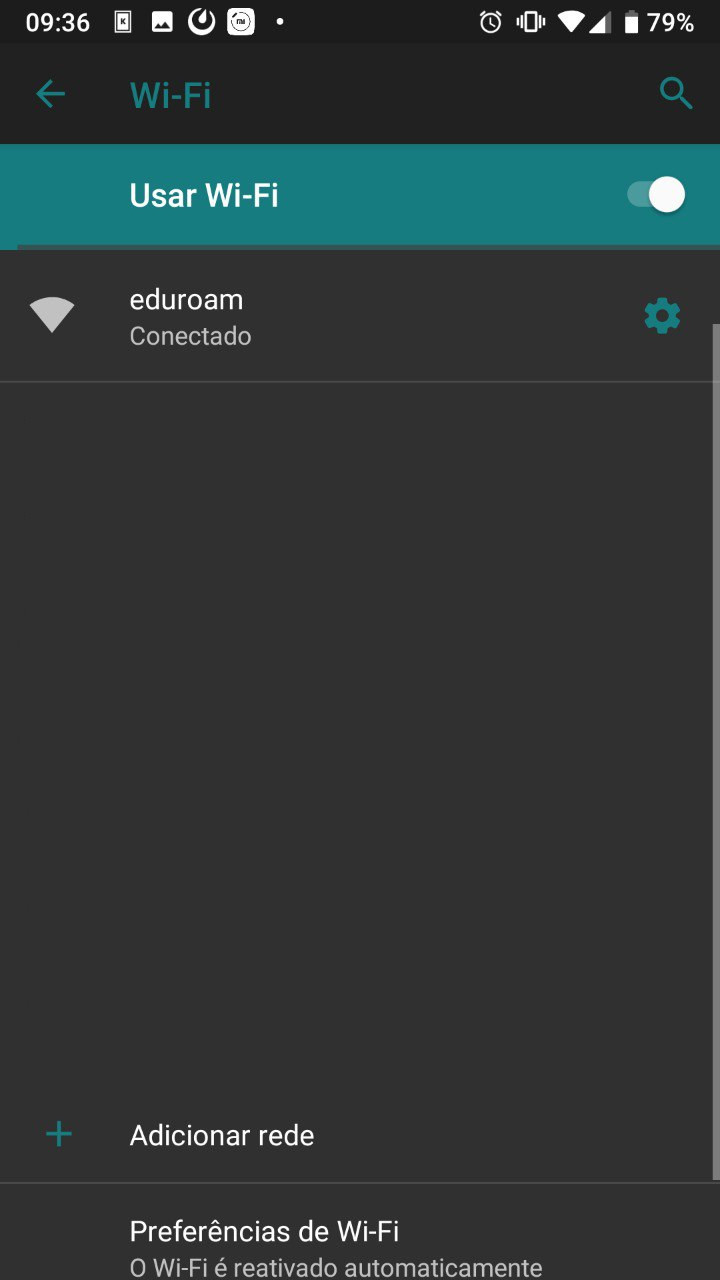
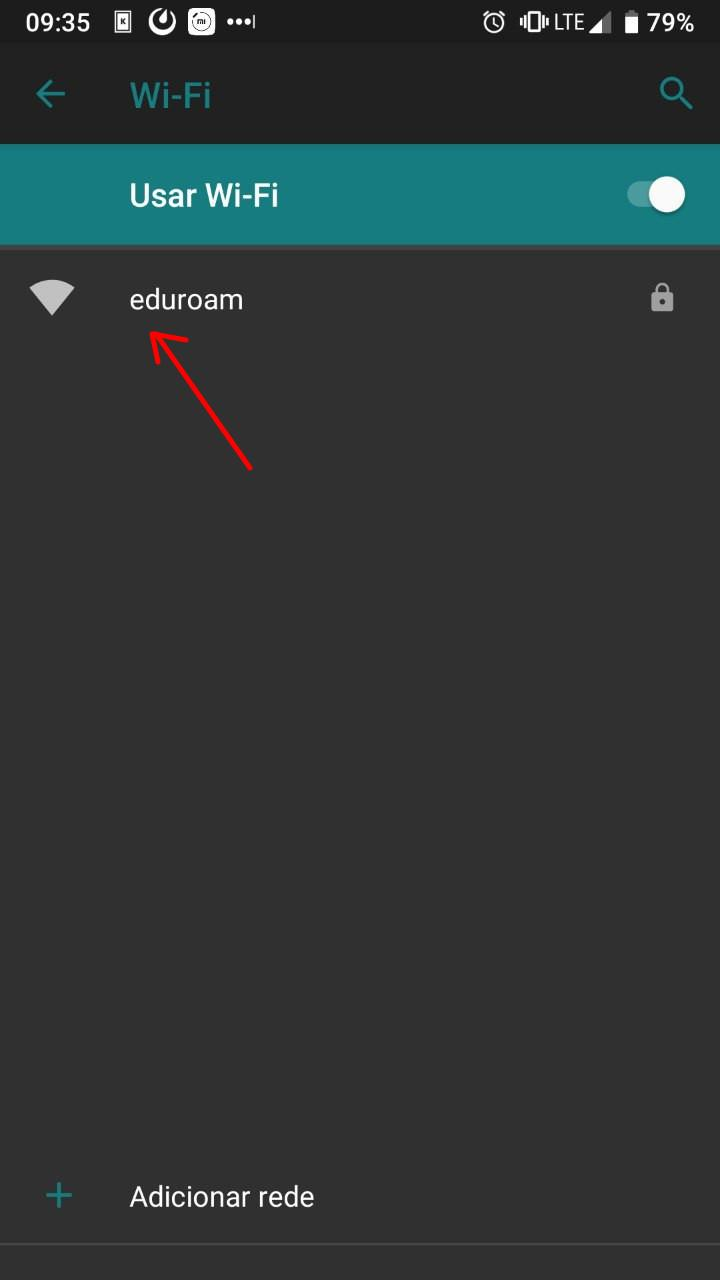
Escolher o SSID ou “Nome da Rede” eduroam (tudo em minúsculo).

Configurações de Autenticação de Usuário:  
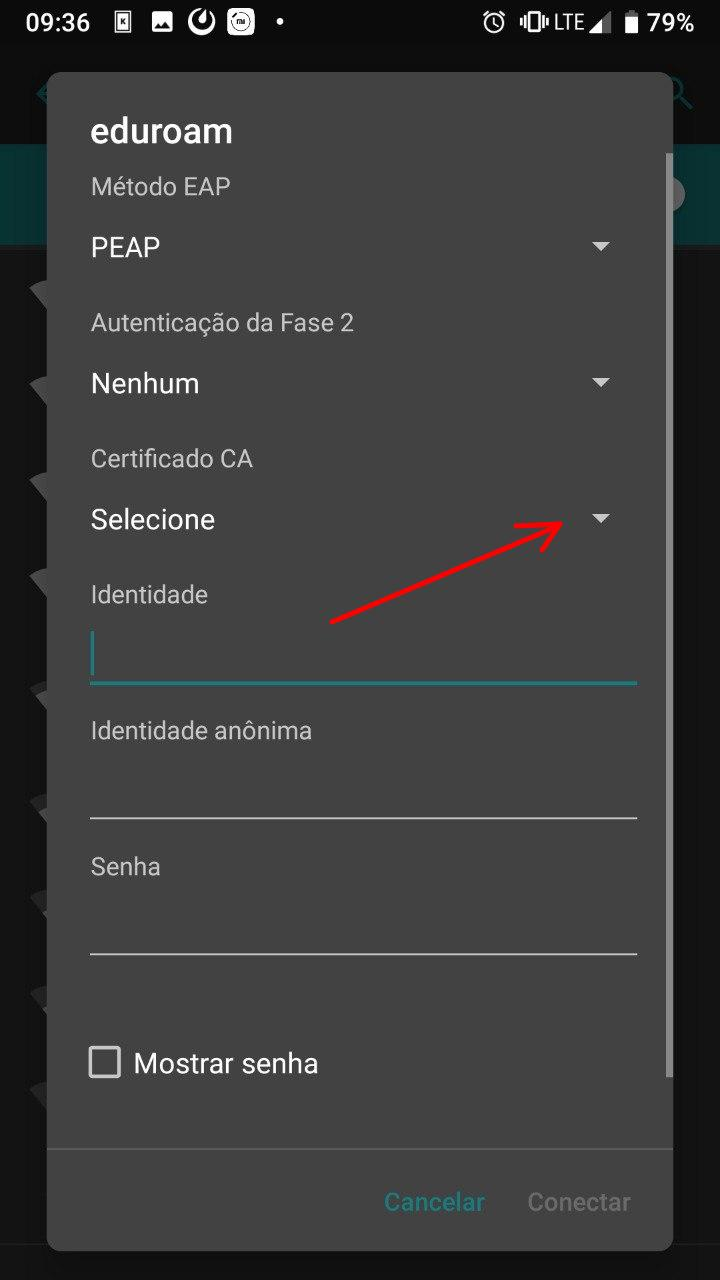
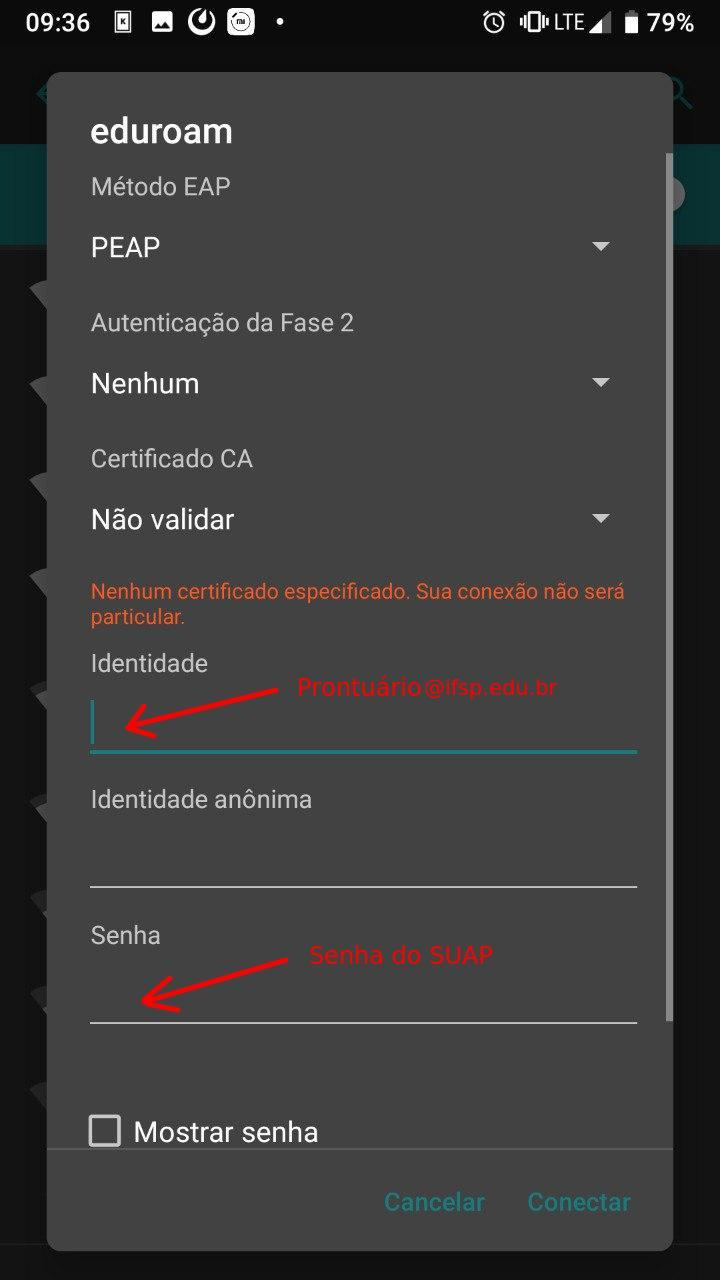
Método EAP: PEAP.  
Domínio: eduroamv4.ifsp.edu.br  
Autenticação da Fase 2: Nenhum  
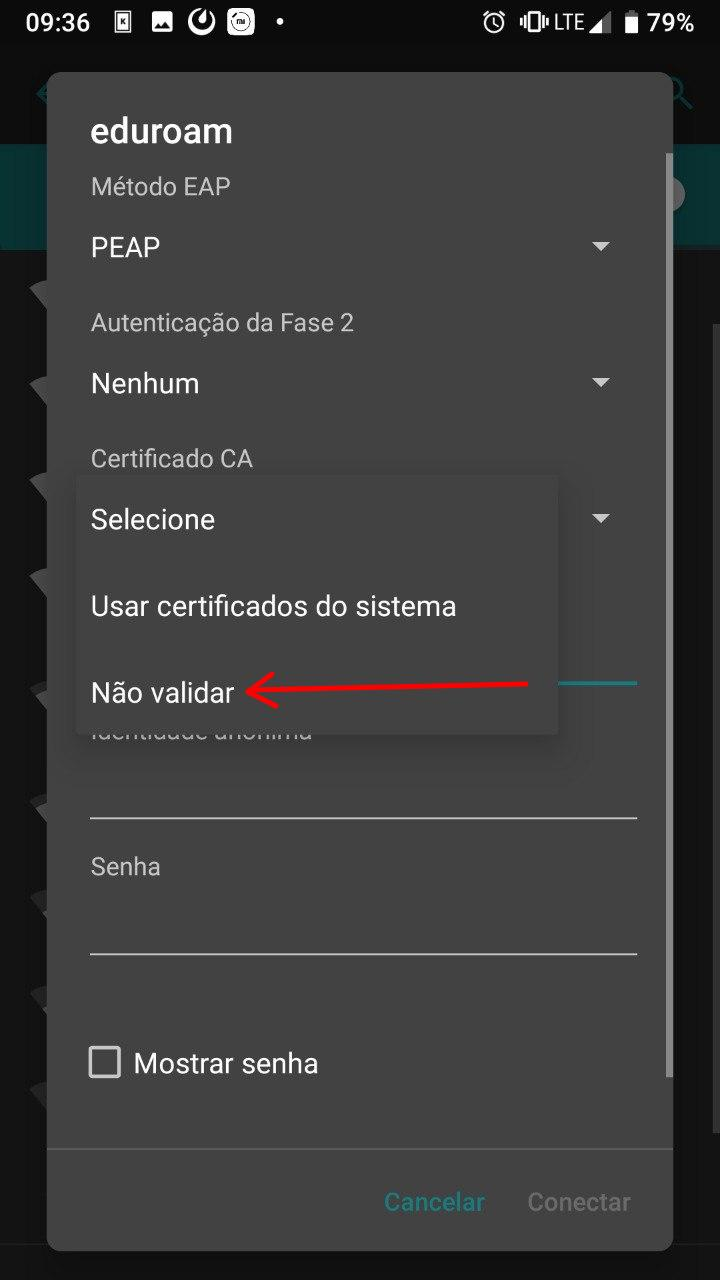
Certificado CA: Não validar  
Identidade: prontuário@ifsp.edu.br (exemplo: gu123456@ifsp.edu.br).

Senha: senha do SUAP.

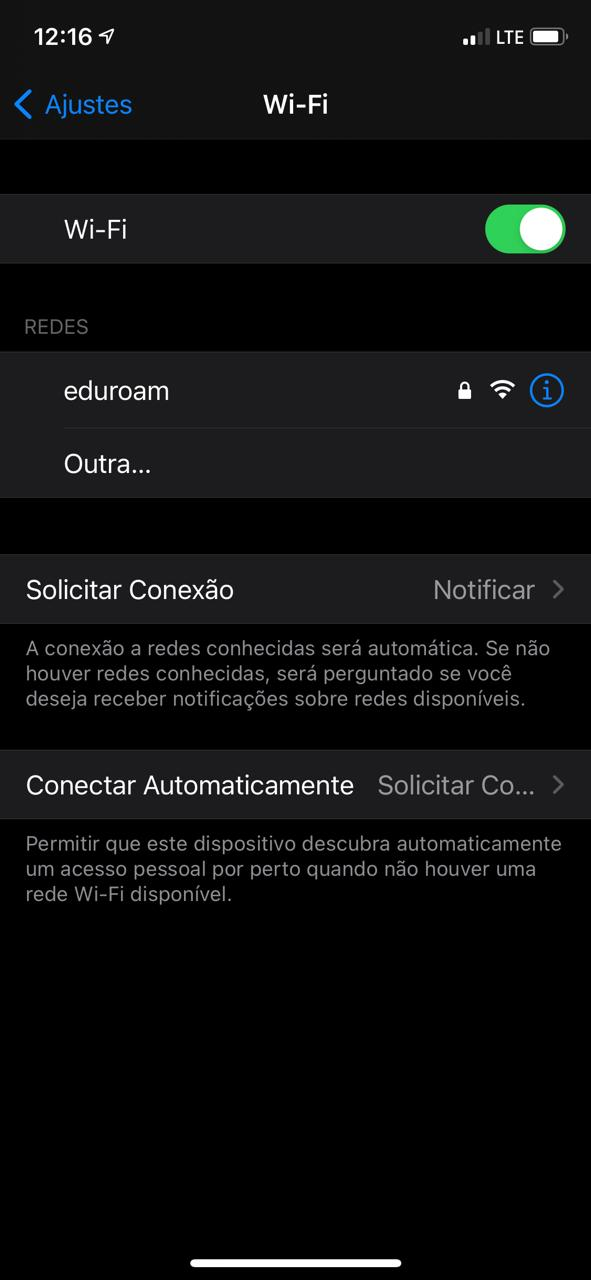
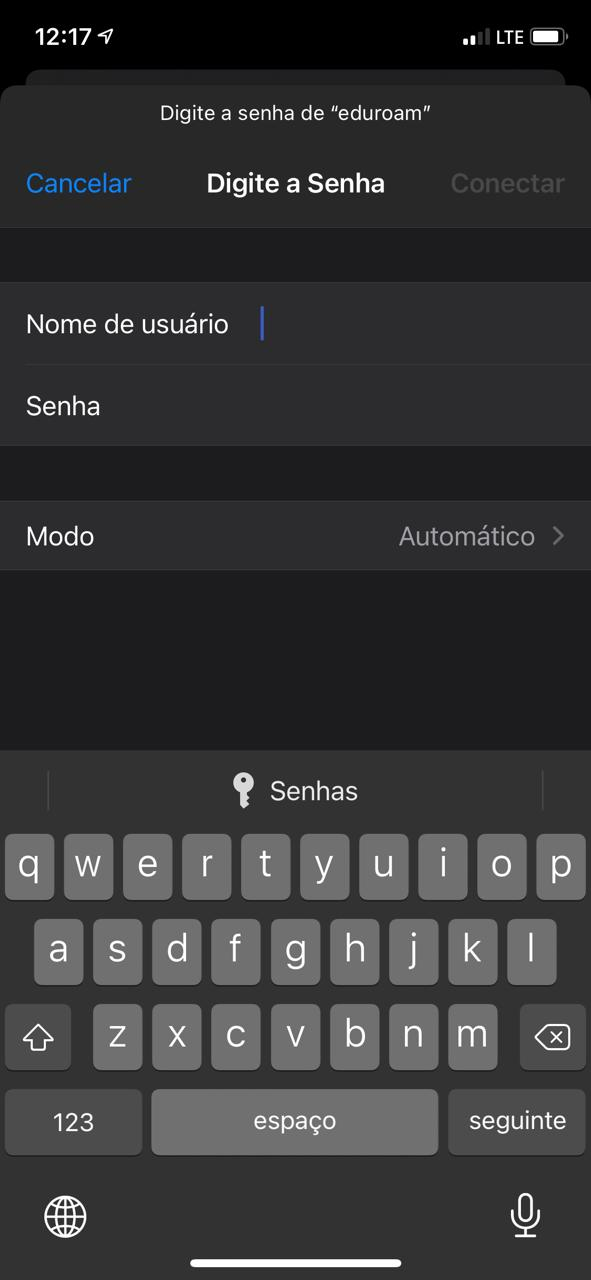
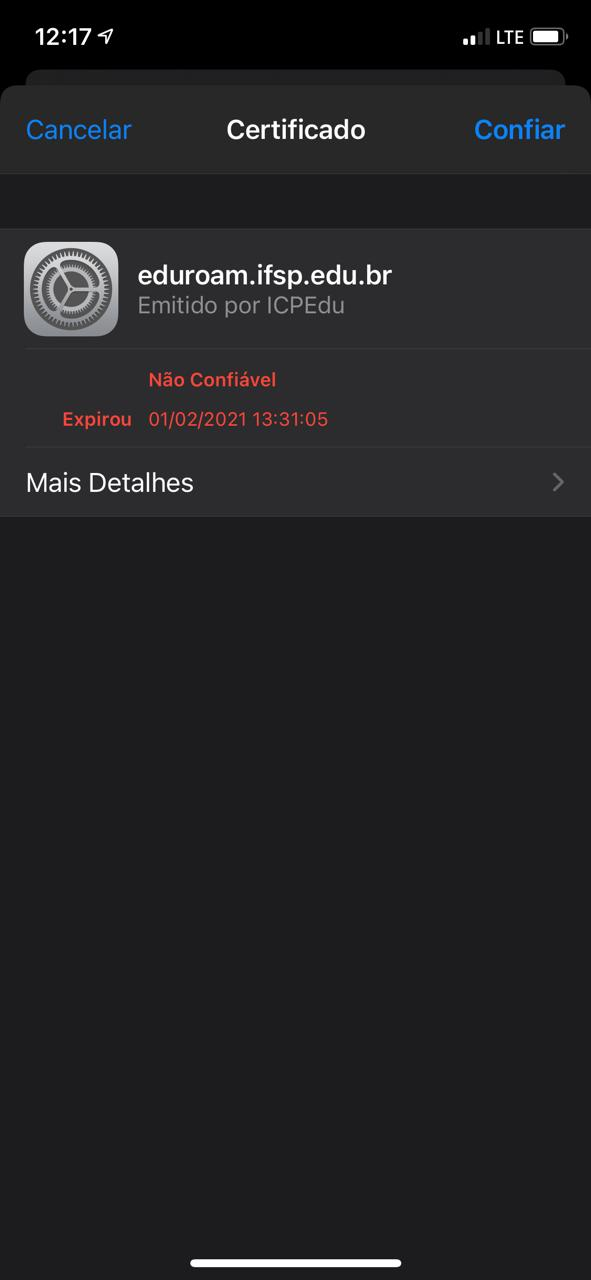
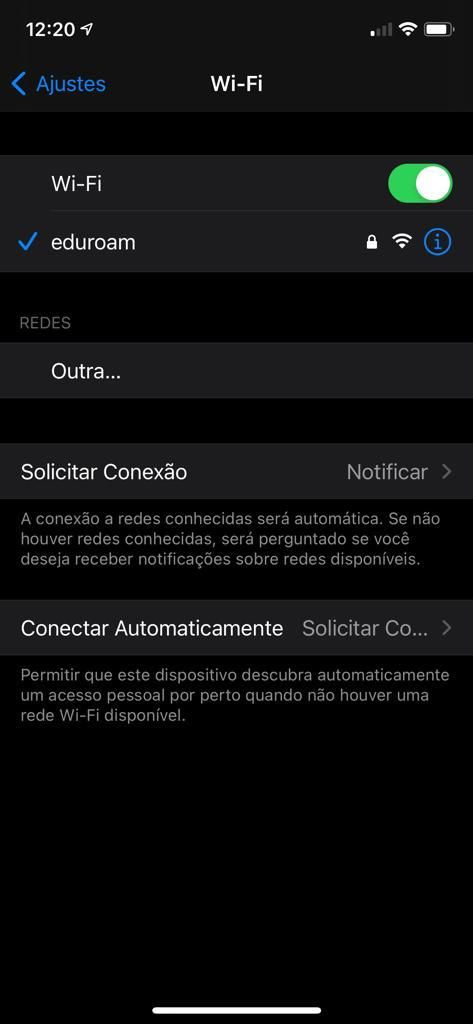
#### <span style="text-decoration: underline;">Dispositivos iOS (iPhone, etc):</span>

<table border="1" id="bkmrk--0" style="border-collapse: collapse; width: 100%;"><tbody><tr><td style="width: 25%;">[![image-1621431502925.png](https://manuais.ifsp.edu.br/uploads/images/gallery/2021-05/scaled-1680-/image-1621431502925.png)](https://manuais.ifsp.edu.br/uploads/images/gallery/2021-05/image-1621431502925.png)

</td><td style="width: 25%;">[![image-1621431510076.png](https://manuais.ifsp.edu.br/uploads/images/gallery/2021-05/scaled-1680-/image-1621431510076.png)](https://manuais.ifsp.edu.br/uploads/images/gallery/2021-05/image-1621431510076.png)

</td><td style="width: 25%;">[![image-1621431515451.png](https://manuais.ifsp.edu.br/uploads/images/gallery/2021-05/scaled-1680-/image-1621431515451.png)](https://manuais.ifsp.edu.br/uploads/images/gallery/2021-05/image-1621431515451.png)

</td><td style="width: 25%;">[![image-1621431526739.png](https://manuais.ifsp.edu.br/uploads/images/gallery/2021-05/scaled-1680-/image-1621431526739.png)](https://manuais.ifsp.edu.br/uploads/images/gallery/2021-05/image-1621431526739.png)

</td></tr></tbody></table>


#### <span style="text-decoration: underline;">Dispositivos Windows 7:</span>

<table border="1" id="bkmrk--1" style="border-collapse: collapse; width: 100%;"><tbody><tr><td style="width: 25%;">[![image-1617299661741.png](https://manuais.ifsp.edu.br/uploads/images/gallery/2021-04/scaled-1680-/image-1617299661741.png)](https://manuais.ifsp.edu.br/uploads/images/gallery/2021-04/image-1617299661741.png)

</td><td style="width: 25%;">[![image-1617299664696.png](https://manuais.ifsp.edu.br/uploads/images/gallery/2021-04/scaled-1680-/image-1617299664696.png)](https://manuais.ifsp.edu.br/uploads/images/gallery/2021-04/image-1617299664696.png)

</td><td style="width: 25%;">[![image-1617299668155.png](https://manuais.ifsp.edu.br/uploads/images/gallery/2021-04/scaled-1680-/image-1617299668155.png)](https://manuais.ifsp.edu.br/uploads/images/gallery/2021-04/image-1617299668155.png)

</td><td style="width: 25%;">[![image-1617299670775.png](https://manuais.ifsp.edu.br/uploads/images/gallery/2021-04/scaled-1680-/image-1617299670775.png)](https://manuais.ifsp.edu.br/uploads/images/gallery/2021-04/image-1617299670775.png)

</td></tr></tbody></table>

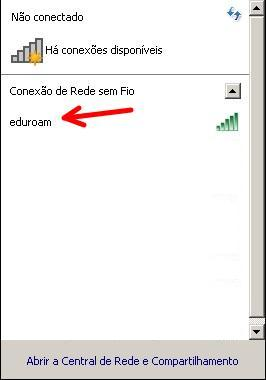
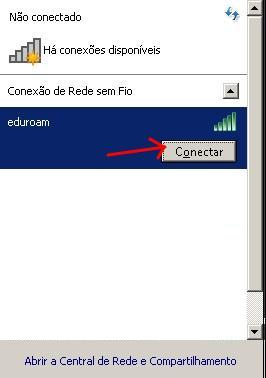
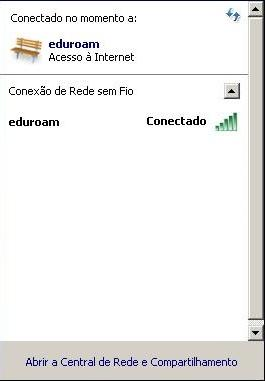
Localize e conecte-se a rede sem fio eduroam (tudo em minúsculo).

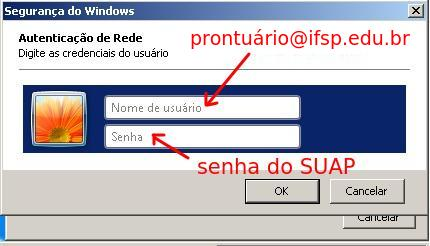
Preencha na janela solicitando as credenciais da rede com seu prontuário@aluno.ifsp.edu.br ou prontuário@ifsp.edu.br e senha do SUAP

##### Mais informações

Alguns sistemas operacionais conseguem detectar automaticamente as configurações de autenticação e por isso, na primeira vez que você for utilizar e configurar o eduroam, os formulários virão preenchidos com sugestões. Geralmente é suficiente aceitar essas sugestões e fornecer o seu prontuário e a senha do SUAP.

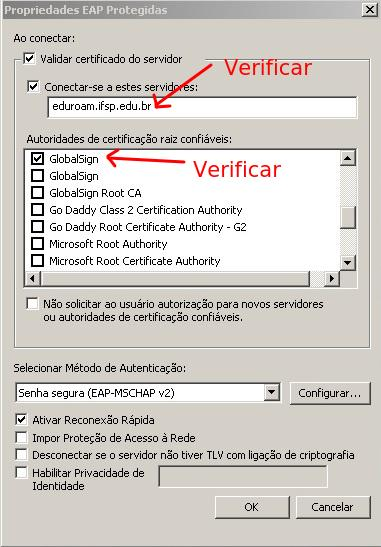
Em especial, para segurança de sua senha, observe que o eduroam oferecido para a comunidade IFSP utiliza certificados criptográficos válidos. Caso seja solicitada alguma confirmação relacionada aos certificados, para aceitar verifique se a autoridade de certificação é a “GlobalSign” e se o nome do servidor possui “eduroam.ifsp.edu.br” no final. Caso contrário, não aceite. Desconfie se você encontrar o SSID eduroam fora das instituições participantes ou se a verificação descrita acima falhar. Nestes caso recomendamos não conectar-se pois pode ser uma tentativa de phishing (roubo de senha).

##### Verificação de segurança no Windows

<table border="1" id="bkmrk--2" style="border-collapse: collapse; width: 100%;"><tbody><tr><td style="width: 33.3333%;">[![image-1617300563432.png](https://manuais.ifsp.edu.br/uploads/images/gallery/2021-04/scaled-1680-/image-1617300563432.png)](https://manuais.ifsp.edu.br/uploads/images/gallery/2021-04/image-1617300563432.png)

</td><td style="width: 33.3333%;">[![image-1617300566904.png](https://manuais.ifsp.edu.br/uploads/images/gallery/2021-04/scaled-1680-/image-1617300566904.png)](https://manuais.ifsp.edu.br/uploads/images/gallery/2021-04/image-1617300566904.png)

</td><td style="width: 33.3333%;">[![image-1617300569818.png](https://manuais.ifsp.edu.br/uploads/images/gallery/2021-04/scaled-1680-/image-1617300569818.png)](https://manuais.ifsp.edu.br/uploads/images/gallery/2021-04/image-1617300569818.png)

</td></tr></tbody></table>

#### <span style="text-decoration: underline;">Dispositivos Windows 10:</span>

Quando a instalação no modo automático falha no Windows 10 recomendamos a configuração manual

**reparação antes da configuração (passos 1 e 2)**  
  
**1) Desinstalar qualquer configuração atual gravada no sistema:**  
  
Vá em **Configurações** &gt;&gt; **Rede e Internet** &gt;&gt; **Wi-Fi** &gt;&gt; Clique em **"Gerenciar Redes Conhecidas"**  
  
Aparecerá uma lista de redes sem fio com configuração salva   
  
Clique no botão **"remover"** conforme a figura abaixo:

[![image-1621431732998.png](https://manuais.ifsp.edu.br/uploads/images/gallery/2021-05/scaled-1680-/image-1621431732998.png)](https://manuais.ifsp.edu.br/uploads/images/gallery/2021-05/image-1621431732998.png)

##### **2) Verificar se o dispositivo de rede sem fio está corretamente reconhecido pelo Windows 10:**  
  
Vá em **Configurações** &gt;&gt; **Rede e Internet** &gt;&gt; **Wi-Fi** &gt;&gt; Clique em **propriedades de Hardware**  
  
Deverá aparecer uma tela como a figura abaixo:

[![image-1621431746997.png](https://manuais.ifsp.edu.br/uploads/images/gallery/2021-05/scaled-1680-/image-1621431746997.png)](https://manuais.ifsp.edu.br/uploads/images/gallery/2021-05/image-1621431746997.png)

##### <span style="color: #ff0000;">**Configuração manual do Eduroam:**</span>  
 

##### **3)** Em  **"Painel de Controle"** clique em **"Central de Rede e Compartilhamento"**

A forma mais fácil de acessar o "Painel de Controle" é ir no executar (WIN + R) digitar control panel e clicar em ok

[![image-1638199585276.png](https://manuais.ifsp.edu.br/uploads/images/gallery/2021-11/scaled-1680-/image-1638199585276.png)](https://manuais.ifsp.edu.br/uploads/images/gallery/2021-11/image-1638199585276.png)

#####   
**4)** Clique em **"Configurar uma nova conexão ou rede"**

[![image-1621431760909.png](https://manuais.ifsp.edu.br/uploads/images/gallery/2021-05/scaled-1680-/image-1621431760909.png)](https://manuais.ifsp.edu.br/uploads/images/gallery/2021-05/image-1621431760909.png)

##### **5)** Clique em **"Conectar-se manualmente a uma rede sem fio"**

[![image-1621431782566.png](https://manuais.ifsp.edu.br/uploads/images/gallery/2021-05/scaled-1680-/image-1621431782566.png)](https://manuais.ifsp.edu.br/uploads/images/gallery/2021-05/image-1621431782566.png)

##### **6)** Clique em avançar e **digitar os dados** conforme a figura e clicar em **Avançar**:  
  
  
![](https://atendimentosti.usp.br/otrs/public.pl?Action=PublicFAQZoom;Subaction=DownloadAttachment;ItemID=290;FileID=794)

##### **7) A tela a seguir aparece uma única vez para configurar, caso feche ou perca a janela deve começar tudo novamente apagando todos os perfis.**  
  
Clique em **"Alterar configurações de conexão"**  
  
--------------------------------------------------------------------------------------------------------------------  
NÃO FECHE ESTA JANELA ATÉ CONCLUIR e a CONEXÃO de REDE FUNCIONAR  
--------------------------------------------------------------------------------------------------------------------  
  
![](https://atendimentosti.usp.br/otrs/public.pl?Action=PublicFAQZoom;Subaction=DownloadAttachment;ItemID=290;FileID=796)

##### 8) **NÃO** pode aparecer a tela abaixo, se aparecer comece de novo apagando qualquer perfil existente.  
  
![](https://atendimentosti.usp.br/otrs/public.pl?Action=PublicFAQZoom;Subaction=DownloadAttachment;ItemID=290;FileID=795)  
  
9) Deverá aparecer a tela abaixo se a configuração estiver correta até este ponto, **clique na aba Segurança**  
  
![](https://atendimentosti.usp.br/otrs/public.pl?Action=PublicFAQZoom;Subaction=DownloadAttachment;ItemID=290;FileID=797)

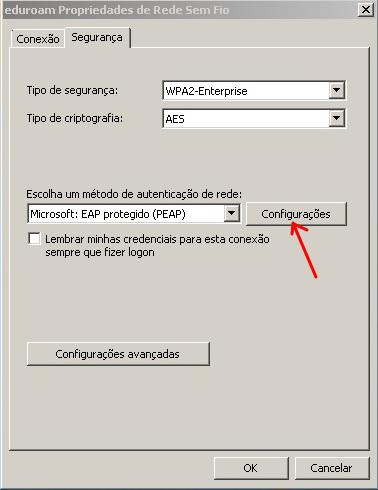
##### 10) selecionar o método de autenticação de rede **EAP-PEAP**  
  
Depois clicar em **Configurações**:  
  
![](https://atendimentosti.usp.br/otrs/public.pl?Action=PublicFAQZoom;Subaction=DownloadAttachment;ItemID=290;FileID=799)  
  
12) E na tela que surgir **desmarque** a verificação de certificados como mostrado na figura abaixo, clicando no quadradinho com um X

#####   
![](https://atendimentosti.usp.br/otrs/public.pl?Action=PublicFAQZoom;Subaction=DownloadAttachment;ItemID=290;FileID=800)  
  
13) Clique **OK** e volta para tela anterior e nela deve clicar o botão **configurações avançadas:**  
  
![](https://atendimentosti.usp.br/otrs/public.pl?Action=PublicFAQZoom;Subaction=DownloadAttachment;ItemID=290;FileID=801)

##### 14) Na tela que surgir deve selecionar a opção **"Autenticação de Usuário"** dentre as quatro opções:  
  
![](https://atendimentosti.usp.br/otrs/public.pl?Action=PublicFAQZoom;Subaction=DownloadAttachment;ItemID=290;FileID=802)

#####   
15) E clique no botão **"SALVAR CREDENCIAIS"**  ou **"SUBSTITUIR CREDENCIAIS"**   
  
lembrando que o nome de usuário é o seu prontuário seguido de @ifsp.edu.br, isto é, 1234567@ifsp.edu.br e a senha é a sua senha única  
  
![](https://atendimentosti.usp.br/otrs/public.pl?Action=PublicFAQZoom;Subaction=DownloadAttachment;ItemID=290;FileID=803)

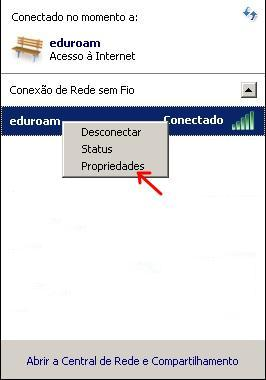
##### 16) Agora na parte do ícone de rede perto do relógio do windows na barra de tarefa clique na rede **"eduroam"**  e clique no botão conectar .  
  
  
![](https://atendimentosti.usp.br/otrs/public.pl?Action=PublicFAQZoom;Subaction=DownloadAttachment;ItemID=290;FileID=804)

# Como enviar ou transmitir vídeos ao vivo com o EduPlay?

### <span style="font-weight: 400;">[O que é o EduPlay?](https://ajuda.rnp.br/eduplay/)</span>

<span class="text-4505230f--TextH400-3033861f--textContentFamily-49a318e1"><span data-key="3e2c7f60206546bf9a63e872e5e5e48f">Uma plataforma que reúne quase 30 mil vídeos relacionados a ensino, pesquisa, saúde e cultura, com acesso gratuito e que permite, também, transmissões ao vivo de streaming de eventos e transmissão de sinal de TV e de Rádio.</span></span>

[![image-1621430919594.png](https://manuais.ifsp.edu.br/uploads/images/gallery/2021-05/scaled-1680-/image-1621430919594.png)](https://eduplay.rnp.br/)

<span class="text-4505230f--TextH400-3033861f--textContentFamily-49a318e1"><span data-key="18b99c3bee344860a64223ea252dad10">Todos podem acessar o eduplay gratuitamente, em qualquer lugar e a qualquer hora. Os vídeos publicados pelas instituições clientes autorizadas são de acesso livre e podem ser encontrados no portal eduplay.rnp.br.</span></span>

### [<span style="font-weight: 400;">Como enviar videos?</span>](https://ajuda.rnp.br/eduplay/manualdousuario/publicar-conteudo/publicar-conteudos)

### [<span style="font-weight: 400;">Como fazer uma transmissão de vídeo ao vivo?</span>](https://ajuda.rnp.br/eduplay/manualdousuario/publicar-conteudo/transmissao-de-video-ao-vivo)

###  

### <span style="font-weight: 400;">Referência</span>

<span style="font-weight: 400;">Os links de tutoriais foram retirados do </span>[<span style="font-weight: 400;">portal de ajuda da EduPlay</span>](https://ajuda.rnp.br/eduplay/)<span style="font-weight: 400;">.</span>

# Impressão (SiMPres)

Configurando SiMPres

1. Clique no ícone do SiMPres próximo ao relógio do Windows (caso não esteja aparecendo,  
    clique em “˄”)  
    [![image.png](https://manuais.ifsp.edu.br/uploads/images/gallery/2025-06/scaled-1680-/Bxoimage.png)](https://manuais.ifsp.edu.br/uploads/images/gallery/2025-06/Bxoimage.png)

2\. Na janela que abrirá, preencher os seguintes dados na guia “Login”:

[![image.png](https://manuais.ifsp.edu.br/uploads/images/gallery/2025-06/scaled-1680-/zWfimage.png)](https://manuais.ifsp.edu.br/uploads/images/gallery/2025-06/zWfimage.png)

• Endereço do Servidor: https://impressao.gru.ifsp.edu.br/simpres  
• Nome do usuário: Preencher com seu usuário e senha do câmpus Guarulhos (o mesmo que é  
utilizado para acessar à internet. Ex: gu29392X, gu145834 – Observe que o “gu” é  
minúsculo e a letra final, caso houver, é maiúscula.  
• Senha: É a mesma utilizada para acessar à internet.